

Wp Rocket Best Setting – Speed Booster WP Rocket Reviews
Wp Rocket Best Setting – Speed Booster WP Rocket Reviews – Ever tweaked every checkbox in a caching plugin, run a speed test, and watched the score barely move? Or worse, watched your homepage layout fall apart?
That’s the usual story with the WP Rocket best setting search. Plenty of guides tell you to switch on everything. That advice is outdated, and on some sites it’s risky. WP Rocket does a lot automatically the moment you activate it, and the extra options only help when you enable them in the right order and test as you go.
Wp Rocket Best Setting – Speed Booster WP Rocket Reviews
This article is a practical WP Rocket review and settings walkthrough. You’ll learn how to measure your site’s speed before touching anything, which settings are safe on almost every site, and which ones need caution. Because a bloated database also drags a site down, I’ll also cover the top 5 database cleaner plugins, with a full guide to Advanced Database Cleaner: how to install it, how to clean with it, and what you get in the free and Pro versions.
If you want a speed booster WP Rocket setup that works without breaking your design, start from the top and take it one step at a time.
What Is WP Rocket and Is It Worth Paying For?
WP Rocket is a premium caching and speed optimization plugin for WordPress. There is no free version. Regular pricing has been about $59 a year for one site, $119 for three sites, and $299 for the largest plan, though sale prices appear around Black Friday. Prices and site limits change, so confirm them on the official pricing page before you buy.
Every plan carries the same features. The only difference is how many sites you can use it on.
What WP Rocket does out of the box
Once activated, it applies several optimizations without any setup:
- Page caching
- Browser caching headers
- GZIP compression
- Cache preloading for the homepage
- Mobile-friendly caching
The settings you control are the extras: file optimization, lazy loading, preload rules, database cleanup, and CDN integration.
Pros and cons
Pros
- Easy dashboard, so beginners can use it without code
- Delay JavaScript and Remove Unused CSS are built in
- Regular updates and support from the developer
- Works with most themes and page builders
Cons
- Paid only, billed yearly
- Some options can break layouts if you enable them blindly
- Database cleaning is basic compared with dedicated tools
My view: if your site earns money or you depend on organic traffic, a yearly license is cheap compared with the cost of slow pages. Buy a proper license from the official site. Nulled copies get no updates and can carry malware, which defeats the purpose of a speed plugin.
[Image Placeholder: Image: WP Rocket dashboard showing the main tabs, for the Wp Rocket Best Setting – Speed Booster WP Rocket Reviews guide]
How to Test Your Website Speed Before Changing Anything
You can’t judge a setting if you don’t know where you started. Take your baseline first.
Tools to use
- Google PageSpeed Insights (pagespeed.web.dev): shows Core Web Vitals and field data from real users.
- GTmetrix: gives a waterfall chart that shows which files load slowly.
- Pingdom Tools: a quick check of load time and page size.
- Dotcom-Tools: tests from several locations, useful if your visitors are spread around.
How to run the test
- Open your browser and search for the tool, or go straight to its site.
- Paste your homepage URL, then repeat with one blog post and one product or service page.
- Run each test two or three times and note the average, because single runs vary.
- Write down these numbers: load time, total page size, number of requests, Largest Contentful Paint, and Total Blocking Time.
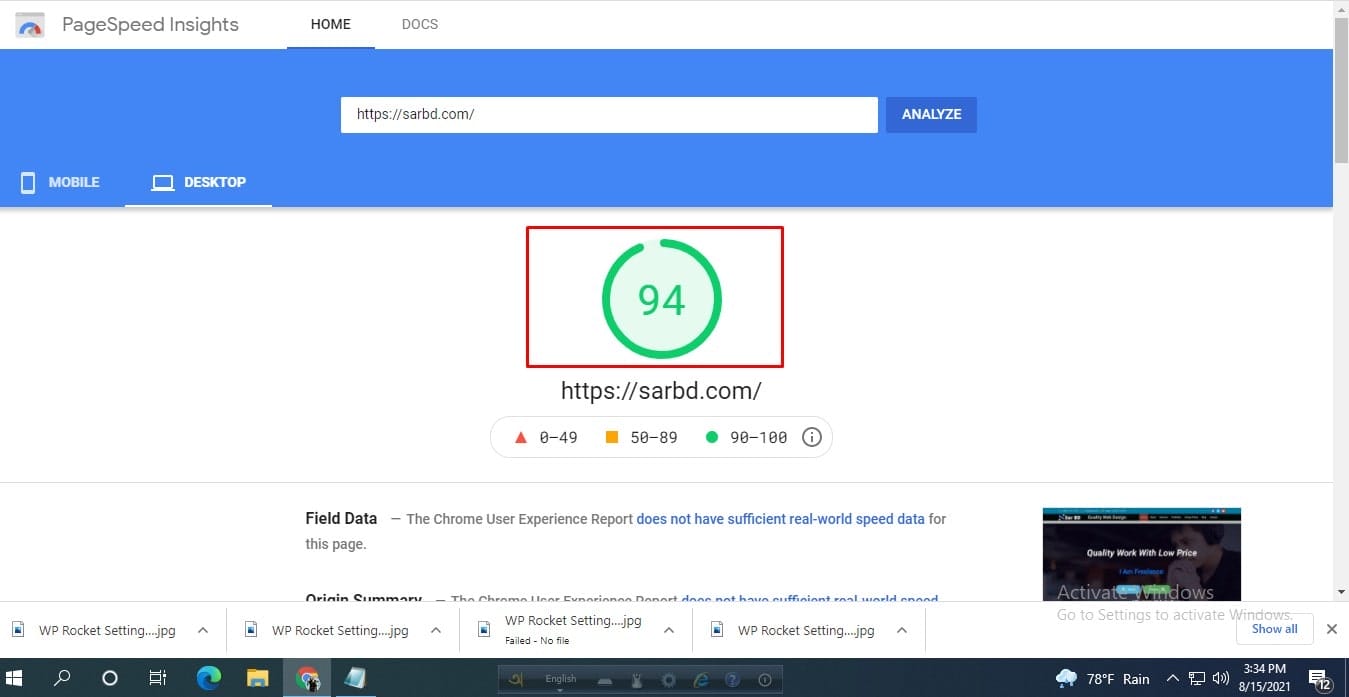
[Insert your own before score here, with a screenshot]
Keep this record. After each settings change, test again. If a score drops, you know exactly which change caused it.
A note on expectations: no honest guide can promise a score of 99. Your theme, hosting, plugins, and images all affect the result. A better target is passing Core Web Vitals on the pages that bring you traffic.
[Image Placeholder: Image: GTmetrix and PageSpeed Insights results page before optimization]
WP Rocket Best Settings, Tab by Tab
Install and activate your licensed copy first (Plugins → Add New → Upload Plugin). Then open Settings → WP Rocket. Work through the tabs in the order below and test after each one.
Cache tab
- Enable caching for mobile devices: turn it on.
- Separate cache files for mobile devices: turn it on only if your theme serves different markup on phones. If your theme is fully responsive, you can leave it off.
- Cache lifespan: the default works for most blogs. Shorten it for stores or sites that change often.
File Optimization tab
This tab gives the biggest speed gains and causes the most problems, so go slowly.
CSS
- Minify CSS files: safe for most sites. Enable it.
- Combine CSS files: leave it off on modern HTTPS sites running HTTP/2. Combining often adds little and can break styling.
- Optimize CSS delivery: choose Remove Unused CSS. It strips CSS a page never uses. If it breaks something on your layout, switch to Load CSS asynchronously instead.
JavaScript
- Minify JavaScript files: enable and test.
- Combine JavaScript files: leave it off.
- Load JavaScript deferred: enable and check your site in an incognito window.
- Delay JavaScript execution: very effective, and also the setting most likely to cause trouble with sliders, popups, and chat widgets. Use the one-click exclusions when something breaks. If you need too many exclusions, switching it off for the whole site is a legitimate choice.
The official WP Rocket documentation suggests turning these on one at a time in this order: defer JavaScript, then delay JavaScript, then Remove Unused CSS. I follow that sequence.
Media tab
- LazyLoad for images: enable.
- LazyLoad for iframes and videos: enable. Replacing YouTube iframes with a preview image saves a lot of weight.
- Add missing image dimensions: enable. It helps prevent layout shifts.
Preload tab
- Preload cache: enable, so visitors hit warm pages.
- Sitemap-based preloading: enable and add your sitemap URL, such as the one from your SEO plugin.
- Preload links: enable it if you want pages to load faster as visitors hover over links.
Advanced Rules, Database, and Heartbeat
- Database tab: covered in its own section below.
- Heartbeat tab: reduce activity in the dashboard and editor. This lowers server load on shared hosting.
CDN and Cloudflare
If you use Cloudflare, enable the Cloudflare add-on and enter your details. Add a CDN only if your visitors are far from your server.
Image optimization
WP Rocket doesn’t compress your images itself. Pair it with an image plugin such as Smush, Imagify, or ShortPixel. Large uncompressed images are one of the most common reasons a site stays slow no matter how well the caching is set up.

Clean the Database Too: Why It Supports WP Rocket
WP Rocket has a Database tab that removes post revisions, auto drafts, trashed posts, spam comments, and expired transients. It can also optimize tables and run on a schedule. For a small blog, that’s plenty.
On older or busier sites, the database collects much more: orphaned post meta, leftover tables from plugins you deleted years ago, autoloaded options that load on every page request, and cron jobs with no owner. WP Rocket can’t identify these. A dedicated database cleaner can.
Safe rules before any cleanup
- Take a full backup first. A deleted table can’t be undone.
- Don’t tick every box in the Database tab without reading each one.
- Leave post revisions alone if your editors rely on them. Many sites keep the latest few instead of deleting all.
- Run the cleanup, then test your site and check your key pages.
Top 5 WordPress Database Cleaner Plugins
Here are five plugins worth considering. Details can change, so check each plugin’s page for current pricing.
1. Advanced Database Cleaner (our top pick)
This one has been around for about ten years and is installed on over 100,000 sites. The free version cleans revisions, auto drafts, trashed items, spam, orphaned post and comment metadata, and transients. It also optimizes tables and supports scheduled cleanups with a “keep the last X days” rule. The Pro version adds detection of orphaned options, tables, and cron jobs, and shows which plugin created them. Pro pricing has been listed around $39 to $49 a year for a single site, so check the current price.
2. WP-Optimize
A broader tool: database cleanup, image compression, caching, and GZIP in one plugin. The free version cleans the whole database with one click. Premium adds per-task scheduling, multisite support, and lazy loading. If you already run WP Rocket, you probably don’t need its caching, so you’d use it only for the database and images.
3. WP-Sweep
A free, lightweight plugin that uses WordPress’s own delete functions to remove revisions, drafts, orphaned data, and expired transients. It’s simple and safe, but it has fewer features and no orphaned-table detection.
4. Database Cleaner by Meow Apps
A newer plugin with a built-in map of known tables, options, and cron jobs, which helps it recognize what belongs to WordPress core and common plugins. The developer’s own comparison says its free version recognizes core and common plugins, while Pro carries a much larger curated map. Its automatic sweeper is a Pro feature.
5. Optimize Database after Deleting Revisions
A free plugin focused on one job: deleting old revisions and optimizing tables on a schedule. Good for a tiny site, too limited for anything bigger.
Comparison table
| Plugin | Free Version | Paid Version | Key Features | Pros | Cons | Best For |
|---|---|---|---|---|---|---|
| Advanced Database Cleaner | Yes | Pro, roughly $39–49/yr (verify) | Revisions, transients, scheduled cleanup, table optimization; Pro finds orphaned options, tables, cron | Detailed control, free scheduling, shows items before deleting | Orphan detection needs Pro | Sites that need deep, safe cleanup |
| WP-Optimize | Yes | Premium from about $39/yr (verify) | One-click DB cleanup, image compression, caching | All-in-one, friendly interface | Overlaps with WP Rocket’s caching | Beginners wanting one tool |
| WP-Sweep | Yes | None | Revisions, drafts, orphans, transients | Free, simple, uses WordPress functions | Basic, no orphan table detection | Small blogs |
| Database Cleaner (Meow Apps) | Yes | Pro | Known-table map, orphan recognition | Good at identifying ownership | Auto sweeper is Pro only | Users who want ownership info |
| Optimize Database after Deleting Revisions | Yes | None | Revision cleanup, table optimization | Very light | Narrow feature set | Tiny sites |
[Image Placeholder: Image: Comparison of the top 5 WordPress database cleaner plugins]
Advanced Database Cleaner: Install, Clean, and Compare Free vs Pro
How to install it
- Log in to your WordPress dashboard.
- Go to Plugins → Add New.
- Search for Advanced Database Cleaner (the author is Younes JFR).
- Click Install Now, then Activate.
- Find the plugin’s entry in the dashboard sidebar and open it.
If you buy Pro, download the Pro file from your account and upload it through Plugins → Add New → Upload Plugin. The developer has renamed plugin folders in past updates, so if one version gets deactivated after an update, reactivate it from the Plugins page.
How to clean your database safely
- Back up first. Use your host’s backup or a backup plugin.
- Open the plugin and review the categories: revisions, auto drafts, trashed posts, spam comments, orphaned metadata, and transients.
- Look at the items before deleting. The plugin lets you view what it found, which is a big safety advantage.
- Start with the obvious clutter: auto drafts, trashed posts, spam, and expired transients.
- Clean revisions next. Consider keeping the most recent ones.
- Run Optimize on your tables.
- Set up a scheduled cleanup, such as weekly, for revisions and transients.
- Clear the WP Rocket cache and test your main pages.
Free vs Pro: what’s different
| Feature | Free | Pro |
|---|---|---|
| Clean revisions, drafts, trash, spam | Yes | Yes |
| Clean transients and orphaned post/comment/user metadata | Yes | Yes |
| Optimize and repair tables | Yes | Yes |
| Scheduled cleanups | Yes | Yes |
| Detect orphaned options, tables, and cron jobs | No | Yes |
| Show which plugin or theme owns an item | No | Yes |
| Search and filter options, tables, tasks | Limited | Yes |
| Premium support | No | Yes |
For a blog with a few years of history, the free version covers the basics. If you’ve installed and removed many plugins over time, Pro is where the real savings come from, since leftover options and tables often account for most of the bloat. A reviewer testing the Pro version rated it highly for accuracy and safety, though results always vary by site.
[Affiliate Link: Advanced Database Cleaner Pro]
[Image Placeholder: Image: Advanced Database Cleaner dashboard showing cleanup categories and the optimize button]
Tips, Dos and Don’ts Before You Optimize
Do
- Back up your site before every major change.
- Change one setting at a time and re-test.
- Check pages in an incognito window, on desktop and mobile.
- Exclude scripts that break instead of disabling the whole optimization right away.
- Keep your theme, plugins, and PHP version updated.
- Compress images before uploading them.
Don’t
- Don’t enable every option because a guide said so.
- Don’t combine CSS and JS files on an HTTP/2 host without testing.
- Don’t run two caching plugins together.
- Don’t delete database tables you don’t recognize.
- Don’t judge results from a single speed test run.
What to do if your site breaks
- Clear the WP Rocket cache.
- Turn off the last option you changed.
- Use the exclusion fields (for Delay JS, Remove Unused CSS, or lazy loading) to skip the broken script or element.
- If it still fails, disable that feature for the whole site.
Want it done for you?
Manual cleanup takes time, and a wrong click on a database table can cost you more than a service fee. If you’d rather save the trouble and keep costs low, our team can configure WP Rocket and clean your database for you. Reach out through our contact page or message us directly on WhatsApp.
[Button: Contact on WhatsApp]
FAQ
What is the best WP Rocket setting for speed?
There’s no single combination. The safest high-impact settings are page caching, Minify CSS and JS, Load JavaScript deferred, LazyLoad for images, and preloading. Add Delay JavaScript and Remove Unused CSS after that, testing each one.
Should I combine CSS and JavaScript files in WP Rocket?
On most modern sites using HTTP/2 or HTTP/3, leave both off. The gain is small and the chance of broken layouts is real.
Is the WP Rocket speed booster worth buying in 2026?
If speed affects your traffic or income, yes. It’s one of the easier ways to get caching, lazy loading, and CSS/JS optimization without touching code. Compare it against free alternatives if your budget is tight.
Does cleaning the database speed up WordPress?
It can, especially on older sites with large autoloaded options and many revisions. It also shrinks backups. The gain is usually smaller than what you get from caching and image compression, so treat it as one part of the job.
Is Advanced Database Cleaner free?
There’s a free version on WordPress.org with scheduled cleanups and table optimization. The Pro version adds orphaned options, tables, and cron job detection.
Can I use WP-Optimize with WP Rocket?
Yes, if you use WP-Optimize only for database cleanup and image compression and keep its caching features off. Running two page-caching systems at once causes conflicts.
Why did my site break after enabling Delay JavaScript?
Some scripts, such as sliders, menus, and chat widgets, need to load early. Add them to the exclusion list, or disable Delay JavaScript if the exclusion list grows too long.
Is a WP Rocket nulled or cracked version safe?
No. These copies miss updates and security fixes and often hide malicious code. Buy a license from the official site.
Conclusion
Getting the WP Rocket best setting right comes down to order and patience. Test your speed first, turn on the safe options, add the stronger ones like Delay JavaScript and Remove Unused CSS one at a time, and re-test after each change. Skip the “enable everything” advice, because it causes more problems than it solves.
Then deal with the part most guides ignore: your database. WP Rocket handles the basics, but leftover tables, orphaned options, and old cron jobs need a dedicated tool. Advanced Database Cleaner is my pick for most sites. The free version handles routine cleanup and scheduling, and Pro earns its price when you need to find items left by plugins you removed long ago. Always back up before you delete anything.
If you’d like expert hands on your setup, we can configure WP Rocket, clean your database, and test the result so your pages stay fast and stable.
Ready to speed up your site?
[Affiliate Link: WP Rocket]
[Affiliate Link: Advanced Database Cleaner Pro]
Contact us here or Chat on WhatsApp
