

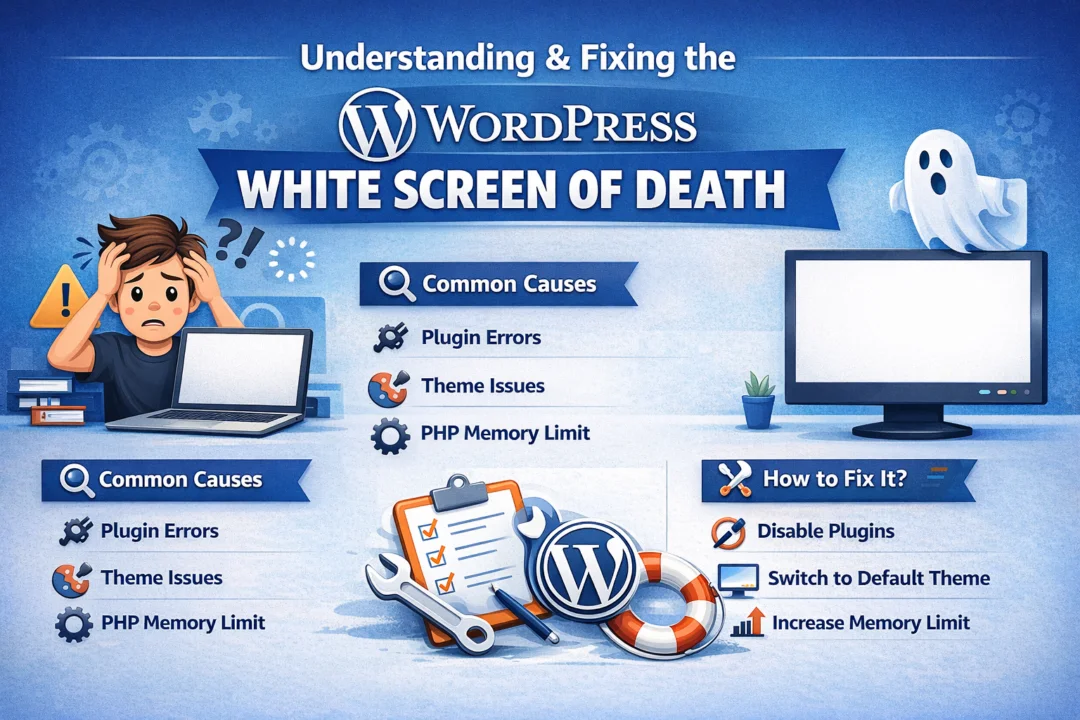
Understanding and Fixing the WordPress White Screen of Death
Understanding the WordPress White Screen of Death – There are few things more terrifying for a website owner than navigating to their site and being greeted by an entirely blank, white page. No error messages, no layout, no helpful prompts—just a vast emptiness. This infamous issue is universally known within the web development community as the WordPress White Screen of Death (WSoD). When it strikes, it halts business operations, frustrates visitors, and leaves administrators scrambling for a reliable WordPress White Screen of Death fix.
The White Screen of Death is not an arbitrary glitch; it is usually a failsafe triggered by a fatal underlying error in your site’s code, memory exhaustion, or a server configuration issue. Because it locks you out of the WordPress admin dashboard, finding the root cause can feel like navigating a maze blindfolded. However, with a systematic approach, recovering your website is entirely possible.
This comprehensive guide provides an in-depth, step-by-step approach to diagnosing and resolving the WSoD. From modifying server memory limits to isolating rogue plugins and debugging syntax anomalies, we will explore the professional techniques used by advanced developers to bring sites back online quickly and securely.

What Exactly is the WordPress White Screen of Death?
The WordPress White Screen of Death is essentially a PHP error or memory exhaustion limit that is being hidden from the end-user. By default, many web hosting providers configure their servers to hide fatal PHP errors. This is done for security purposes; displaying server paths, database variables, or exact code vulnerabilities on a live webpage can provide malicious actors with the information they need to hack your site.
When a fatal error occurs and error reporting is turned off, the server simply stops executing the script and returns nothing, resulting in a blank screen. Sometimes, the WSoD affects the entire site—both the frontend and the backend (wp-admin). In other cases, it may only impact specific pages, single posts, or just the administrative dashboard itself.
It is worth noting that since WordPress version 5.2, the core software introduced a fatal error protection feature. In some scenarios, instead of a pure blank screen, you might see a message stating that the site is having issues. For a deeper dive into this specific feature and how it relates to core errors, check out our guide on This Site is Experiencing Technical Difficulties.
Primary Causes of the Blank White Screen
Before implementing a WordPress White Screen of Death fix, it is crucial to understand what triggers the issue. While the symptom is a single blank page, the underlying disease can stem from a variety of sources:
- Plugin Conflicts: A recently updated plugin, an outdated plugin, or two plugins that are incompatible with each other can cause a fatal PHP crash.
- Theme Errors: A poorly coded theme, or a custom function added to the `functions.php` file, can break the site’s rendering process.
- Exhausted PHP Memory Limits: WordPress requires a certain amount of server memory to process scripts. Heavy plugins or massive database queries can exceed this limit, causing the script to abort.
- Syntax Errors: A simple typo—such as a missing semicolon or an unclosed bracket in your custom code—can take down the entire platform. If you suspect this is the case, you can learn more about code corrections in our tutorial on How to Fix Syntax Error in WordPress.
- Corrupted Core Files: A failed WordPress core update or malware infection can result in missing or corrupted foundational files.
- Caching Issues: Sometimes, the error has already been resolved, but aggressive server-side caching continues to serve a cached version of the white screen.
Essential Preparations Before Troubleshooting
When executing a WordPress White Screen of Death fix, you will be interacting directly with your server’s backend files. Because a single misstep can cause further data loss, preparation is critical.
1. Secure Backups
Never begin troubleshooting without ensuring you have a recent backup of your WordPress database and `wp-content` directory. If your host provides automatic daily backups, log into your hosting dashboard and verify the most recent restore point. [SUGGESTED_LINK: Ultimate Guide to Automating WordPress Backups]
2. Gather Your FTP/sFTP Credentials
Since the WSoD typically locks you out of the `/wp-admin/` dashboard, you will need alternative access to your server. You can achieve this using an FTP client (like FileZilla) or the File Manager provided in your hosting cPanel. You will need your server hostname, FTP username, password, and port number.
3. Use a Code Editor
If you need to edit files like `wp-config.php`, do not use basic text editors like Notepad or Microsoft Word, as they can inject hidden formatting characters that cause further fatal errors. Download a dedicated code editor like Visual Studio Code, Sublime Text, or Notepad++.
Understanding and Fixing the WordPress White Screen of Death
Now that your site is backed up and you have server access, let’s begin a methodical troubleshooting process. Follow these steps sequentially, testing your website after completing each one.

Step 1: Check for the Recovery Mode Email
If you are running a modern version of WordPress, the system continuously monitors for fatal code errors. If an error is detected, WordPress will attempt to send an automated email to the site administrator’s email address. This email contains a special, time-sensitive link that allows you to log into a “Recovery Mode” dashboard.
Check your inbox (and spam folder) for an email with the subject line “Your Site is Experiencing a Technical Issue”. If you received this email:
- Click the provided recovery link to access the backend.
- Navigate to the Plugins or Themes section. WordPress will highlight the specific extension causing the error.
- Deactivate the problematic plugin or theme.
- Exit recovery mode and check your live site.
Step 2: Increase the PHP Memory Limit
Memory exhaustion is one of the most common reasons you need a WordPress White Screen of Death fix. If a script requires more memory than the server allocates, it dies silently. You can manually increase this limit via your `wp-config.php` file.
Connect to your site via FTP and locate the `wp-config.php` file in the root directory. Open it with your code editor and add the following line of code just before the line that says /* That’s all, stop editing! Happy blogging. */:
define( ‘WP_MEMORY_LIMIT’, ‘256M’ );
Save the file and upload it back to the server. If memory exhaustion was the culprit, your site should now load properly. If you still see the white screen, proceed to the next step.
Understanding the WordPress White Screen of Death
Step 3: Disable All WordPress Plugins
If you cannot access the backend, you must disable plugins via your server. This is the most reliable way to rule out a plugin conflict.
- Connect to your server via FTP or cPanel File Manager.
- Navigate to the /wp-content/ directory.
- Locate the folder named plugins.
- Rename this folder to plugins_old or plugins_deactivated.
By renaming the folder, WordPress can no longer find the active plugins and immediately deactivates all of them. Reload your website. If the site is back online, you have confirmed that a plugin is the source of the WSoD.
To find the specific culprit: rename the folder back to plugins. Then, go inside the folder and rename each individual plugin folder one by one (e.g., jetpack_old), checking the live site after each change until the site breaks again. The last plugin you renamed is the offender.
Step 4: Revert to a Default WordPress Theme
If disabling plugins did not yield a WordPress White Screen of Death fix, the issue may lie within your active theme. This often happens after a theme update or if you pasted custom code into the `functions.php` file.
Connect via FTP, navigate to /wp-content/themes/, and locate your active theme’s folder. Download a copy to your computer as a backup, and then delete it from the server. WordPress will automatically fall back to a default theme (like Twenty Twenty-Three or Twenty Twenty-Four) assuming the default theme is still in the folder.
If your site loads with the default theme, the issue is isolated to your custom theme. You may need to review the theme’s `functions.php` file for syntax errors or contact the theme developer for a patch. This highlights the importance of using well-coded, reliable frameworks; for an example of a solid foundation, see our guide on How to Make Portfolio Website Using WordPress.
Step 5: Enable WordPress Debug Mode (WP_DEBUG)
If you are still staring at a blank screen, it is time to force WordPress to reveal what is going wrong. You can do this by enabling debug mode, which will print the hidden PHP errors directly onto the white screen.
Open your `wp-config.php` file via FTP. Look for the following line of code:
define( ‘WP_DEBUG’, false );
Change false to true. If you want to log the errors to a file rather than displaying them publicly (recommended for live sites), replace that single line with the following snippet:
define( ‘WP_DEBUG’, true );
define( ‘WP_DEBUG_DISPLAY’, false );
define( ‘WP_DEBUG_LOG’, true );
Reload the blank page. If you set it to display, you will now see specific error paths (e.g., Fatal error: Cannot redeclare function xyz() in /wp-content/plugins/bad-plugin/index.php on line 42). This tells you exactly which file and line of code requires fixing. If you used the log method, navigate to /wp-content/debug.log to read the generated error report. For more help translating these error logs, consult our extensive list of the 50 Most Common WordPress Errors and How to Fix Them.
Understanding the WordPress White Screen of Death
Step 6: Clear Caches and Check File Permissions
Occasionally, you might successfully apply a WordPress White Screen of Death fix, but aggressive server caching keeps delivering the old, blank page. If you use a caching plugin (and have access to the dashboard), purge the cache. If you use server-side caching (like Varnish, Redis, or Cloudflare), log into your hosting provider or Cloudflare account and purge the cache entirely.
Additionally, incorrect file and folder permissions can cause the server to block access to your files, resulting in a blank page. The standard WordPress permissions should be:
- Folders: 755 or 750
- Files: 644 or 640
- wp-config.php: 440 or 400 (for security)
[SUGGESTED_LINK: How to properly configure WordPress file permissions via cPanel]
Step 7: Check Failed Auto-Updates and Corrupted Core Files
WordPress features background auto-updates. If the server times out mid-update, you might be left with a `.maintenance` file stuck in your root directory, or corrupted core files.
First, look for a file named .maintenance in your root folder via FTP. If it exists, delete it. If the site is still down, you may need to replace the core files. Download a fresh copy of WordPress from WordPress.org. Extract the zip file, delete the `wp-content` folder and the `wp-config-sample.php` file from the extracted files (to ensure you don’t overwrite your own site data), and upload the remaining files to your server via FTP, choosing to overwrite the existing files. This replaces your foundational core without touching your themes, plugins, or database.
Advanced Troubleshooting Techniques
If you have exhausted all the steps above and your site is still down, you are facing a severe server-level issue. Advanced troubleshooting includes:
- Checking PHP Version Compatibility: Ensure your hosting environment is running a modern, supported version of PHP (e.g., PHP 8.0 or higher). Using an outdated PHP version with modern plugins can instantly cause fatal errors.
- Reviewing Server Error Logs: Aside from the WordPress `debug.log`, your server maintains an Apache or Nginx error log. Access this via cPanel (usually under “Metrics” > “Errors”) to look for core server configuration faults.
- Contacting Hosting Support: Sometimes the WSoD is caused by a host-level firewall, an exhausted server inode limit, or an internal hardware failure. At this point, opening an urgent ticket with your web host is the best course of action.
Comparison: WSoD vs. Other Common WordPress Errors
To ensure you are applying the correct fix, it is important to differentiate the WSoD from other notorious WordPress errors:
| Error Type | Primary Symptom | Common Cause | Resolution Focus |
| White Screen of Death (WSoD) | A completely blank white screen; no text, no HTML output. | Exhausted PHP memory, fatal plugin/theme PHP conflict. | Increase memory, disable plugins, enable `WP_DEBUG`. |
| 500 Internal Server Error | Browser displays a generic “500 Internal Server Error” message. | Corrupted `.htaccess` file, strict server permission rules. | Regenerate `.htaccess`, verify CHMOD permissions. |
| Error Establishing a Database Connection | Clear text stating “Error establishing a database connection.” | Incorrect database credentials in `wp-config.php`, or database server down. | Verify DB name, user, and password; contact host to restart MySQL. |
Pros and Cons of DIY Troubleshooting
Attempting a WordPress White Screen of Death fix on your own can be empowering, but it also carries risks.
Pros:
- Cost-effective, as you avoid emergency developer fees.
- Immediate action; you don’t have to wait for a support ticket response.
- Deepens your technical understanding of the WordPress CMS and server architecture.
Cons:
- Risk of causing further damage (e.g., accidentally deleting the database via FTP).
- Time-consuming, especially for those unfamiliar with code editors or FTP clients.
- High stress; managing live production downtime can be overwhelming.
Expert Tips for Preventing the White Screen of Death
Once you have implemented your WordPress White Screen of Death fix and restored your website, your next priority should be prevention. The best offense is a good defense when it comes to site reliability.
- Utilize a Staging Environment: Never test new plugins, major updates, or custom code on your live website. Quality web hosts provide one-click staging environments where you can test changes safely.
- Implement Strict Quality Control for Plugins: Only install plugins from reputable developers with high ratings and active support forums. Avoid bloated plugins that unnecessarily consume massive amounts of PHP memory.
- Set Up Uptime Monitoring: Use tools to ping your website every minute. If the WSoD returns, you will be notified instantly rather than discovering it days later from a confused customer.
- Partner with Professionals: If your website is crucial for revenue, relying solely on DIY maintenance is a massive risk. Investing in expert oversight is vital. Explore how professional code management scales businesses by reading our article on Software Development Solutions for Great Business.
Understanding the WordPress White Screen of Death[/caption]
Frequently Asked Questions (FAQ)
Can a WordPress update cause the White Screen of Death?
Yes. If a background update is interrupted by a server timeout, or if the new WordPress version is incompatible with an outdated plugin or theme, it can result in a fatal error and a blank white page.
How do I fix the WSoD without FTP access?
If you don’t have FTP software, you can log into your web hosting control panel (like cPanel or Plesk) and use the built-in File Manager tool. This allows you to navigate the server structure, rename the plugins folder, or edit the `wp-config.php` file directly from your browser.
Why does my site only show a white screen on the admin dashboard?
If the frontend of your site works but the wp-admin backend is blank, the issue is typically a memory limit problem on the administrative side, or a conflict with a plugin that only runs in the backend dashboard (such as a security or caching dashboard plugin).
Will increasing the PHP memory limit slow down my site?
No, increasing the PHP memory limit allows your scripts enough overhead to execute properly. It does not negatively impact site speed; it merely prevents heavy scripts from crashing and causing the WSoD.
What if WP_DEBUG doesn’t show any errors?
If you have enabled `WP_DEBUG` and `WP_DEBUG_DISPLAY` but the screen remains completely white with no text, the issue is likely a sever-level problem rather than a PHP error. You should contact your hosting provider to check the Apache/Nginx error logs and ensure your account hasn’t been suspended.
Are my files lost when the White Screen of Death happens?
No. The WSoD is just a display issue caused by a stalled PHP script. Your database, media files, content, and settings are safe on the server. Once the faulty code is bypassed or memory is increased, the site will return to normal.
Conclusion
Encountering the WSoD is a rite of passage for nearly every website owner. While staring at a blank screen can induce panic, understanding that it is simply a hidden PHP error or memory bottleneck makes the problem manageable. By utilizing the WordPress White Screen of Death fix strategies outlined above—from checking recovery emails and boosting memory limits to systematically disabling plugins via FTP and enabling debug mode—you can quickly identify the root cause and restore your digital presence.
Remember that robust website maintenance relies on proactive behavior. Regular backups, staging sites, and quality hosting are your best defenses against future downtime. If you found this troubleshooting guide helpful, be sure to bookmark it for future reference, and subscribe to our newsletter for more deep dives into advanced web development, performance optimization, and server security. Don’t let a white screen ruin your day; take control of your code and keep your business online.
“`json


